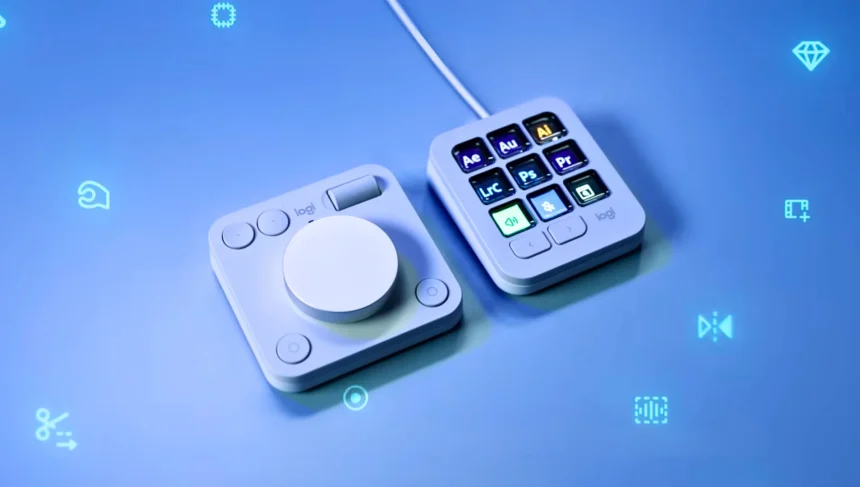

If you’re a content creator working with Adobe Premiere Pro, Photoshop, or Lightroom, you know how much productivity depends on quick access to shortcuts and macros. Logitech designed this MX Creative Console as a dual-component tool to streamline editing workflows but does it live up to the hype to become better than the Elgato Stream Deck or Loupedeck?
In this review, we’ll break down the unboxing, features, setup, real-world performance, pros and cons, and see whether it’s worth your money in 2025.
What’s Inside the Logitech MX Creative Console Box
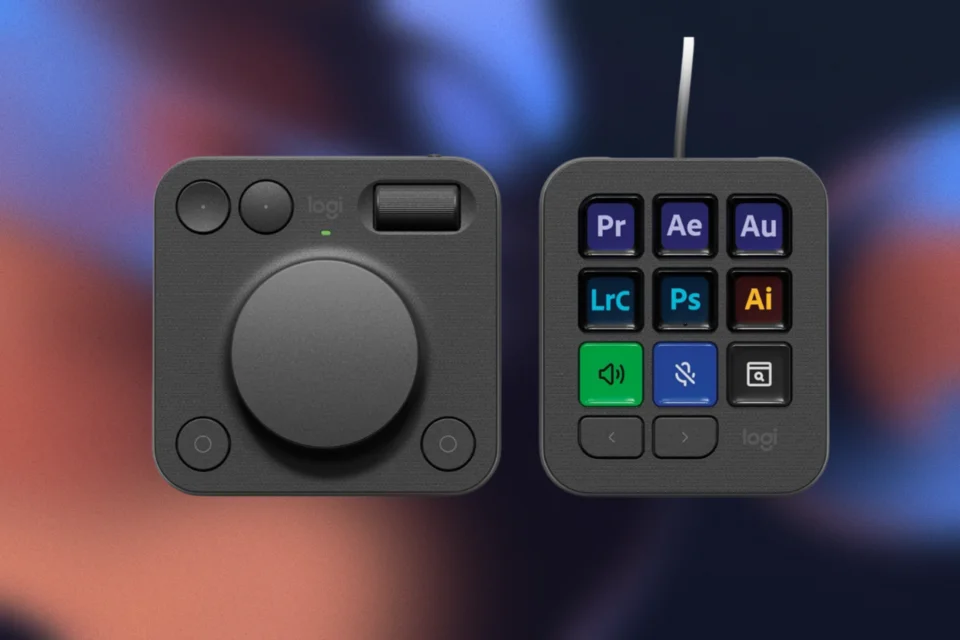
We tested the MX Creative Console for a full week across Adobe Creative Cloud tools. Inside the package, you get:
What stood out? The smooth dial rotation while scrubbing timelines, and haptic feedback when jumping between frames or switching tools in Illustrator that is a game-changing. One interesting thing that Logitech is giving away to their customers is, 3 months of free Adobe Create Cloud membership, that will be for both old and new customers.
Key Features & Design Highlights
Best thing that Logitech have done is the use of sustainable design for their MX Creative console stream dock. Around 72% of recycled plastic is used for Graphite version and Aluminium is used in Dialpad, that is also a renewable energy that’s why after grabbing MX Creative Pad, It feels to be very light weight.
Dynamic Key Controls and Logi Options+ App
Keypad of MX Creative Console have 9 dynamic keys, each having LCD panels to display customized options depending to software enviroment you are using. But I must say from my personal experience that these dynamic keys are just next level problem solver for creative professionals especially who work on Photoshop, Illustrator and Premiere Pro.
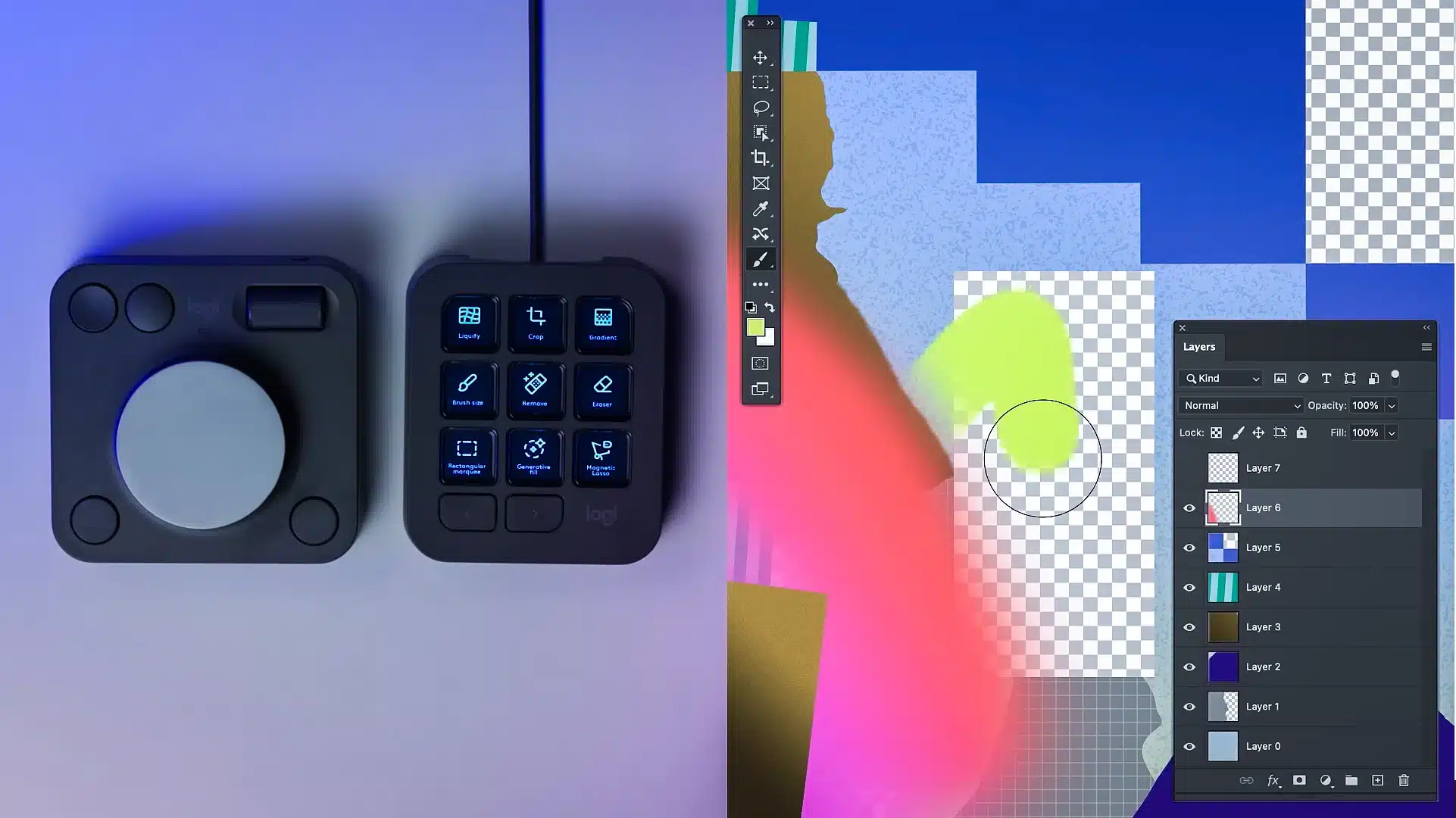
Each of the 9 keys supports 3 pages of shortcuts, customizable via the Logi Options+ app. We set the first page for video editing (Premiere), second for design (Photoshop), and third for quick actions (copy, mute, export).
Also Read: Apple Vision Pro vs Meta Quest 3: What to choose?
How to Set It Up in 3 Steps with Logi Options+
MX Creative Console works with Logitech’s free Logi Options+ software that is available for both Windows and Mac. Now creators can fully customize the console functionalities including controls, plugins, profiles and icons available through the Logi Marketplace. This means creators can tailor their workflows to fit their exact requirements and save valuable time while working on their projects.
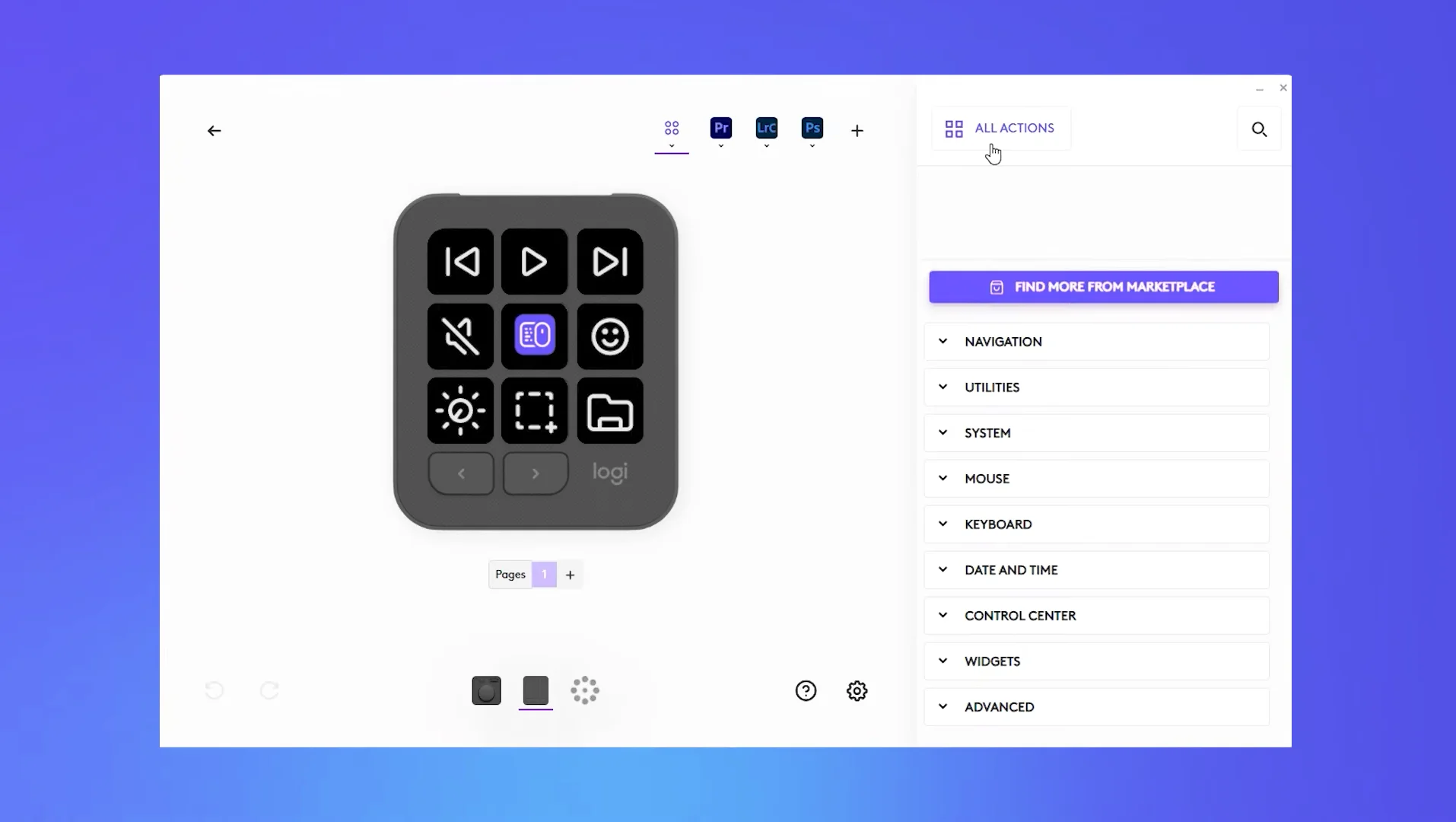
Logitech MX Creative Keypad connects with PC or Mac via USB-C Type where Dialpad is connected via Bluetooth or dongle (Logitech Bolt) that you have to purchase seperately. After analyzing price to value about this stream dock, I got to know even Dialpad worths solely $199.99 USD but Logitech is providing you a best Duo for streaming dock.
3 Steps to Use Smart Actions Logitech MX Creative Console
Following steps would be applied if you want to use smart actions, but first you have to Download Logi Options+ from official Website and install it on you Mac or PC.
Step 1: Connect MX Creative Console
Connect USB-C type cable with Logitech MX Creative Keypad and for Dialpad, you have to power it up with two non-rechargable cells and connect via Bluetooth or Bolt dongle.
Step 2: Add Smart Actions
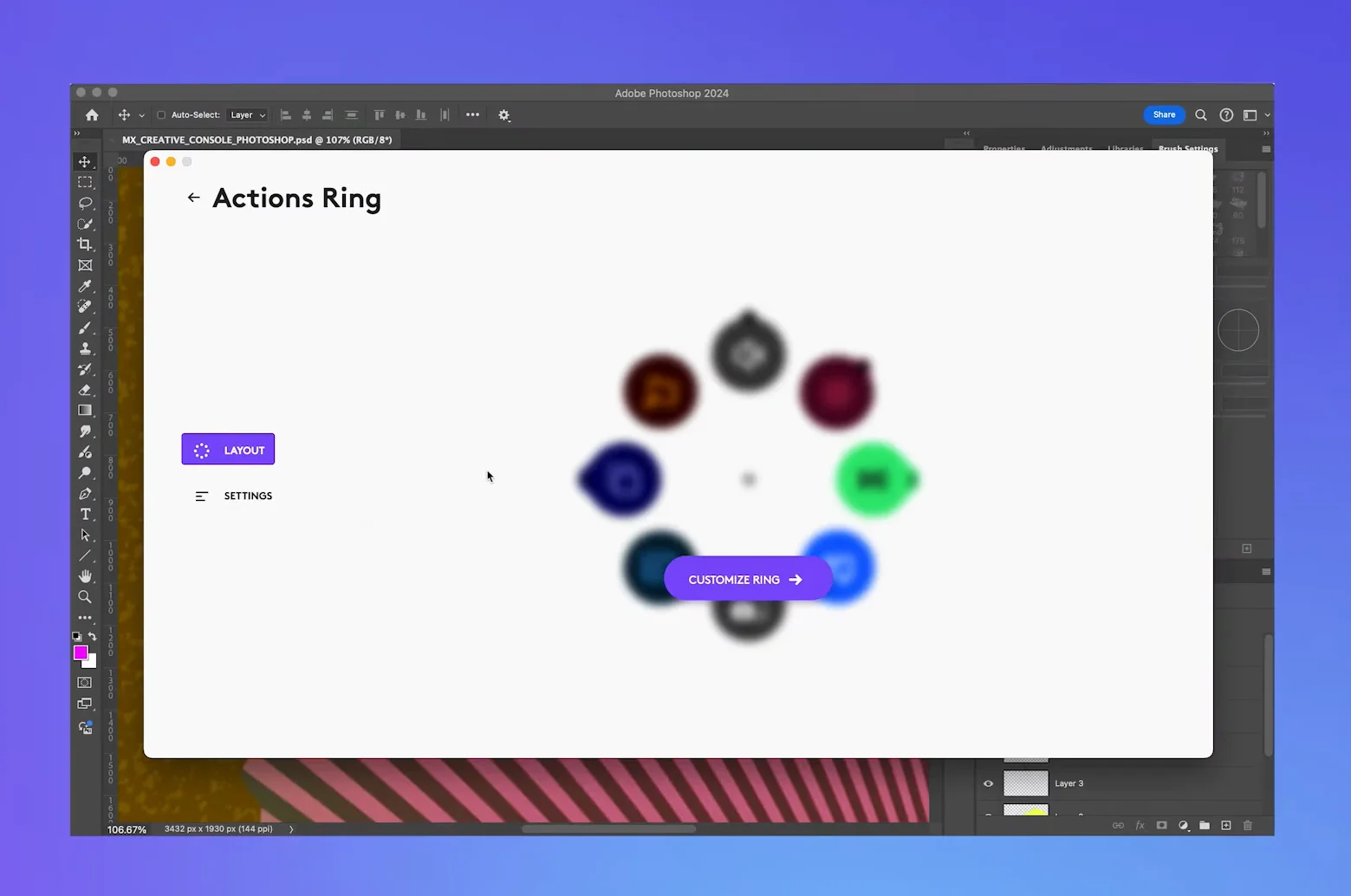
In Logi Options+, select MX Creative console from list of connected devices and find Smart Actions within Console’s setting. You will see a “Add New Smart Action” option that will help you setup macros, automated tasks or even add new shortcuts.
Step 3: Customize and Assign Controls
Select the key or dial you want to customize and then assign smart action to it. But if you are using Adobe Creative Cloud then select Adobe Tools and assign given tools from list to it. Save it to see magic!
Workflow Performance with Adobe Apps
We tested MX Creative Console across Adobe’s ecosystem:
Verdict: If you work mainly in Adobe Creative Cloud, this console feels like a natural extension of your workflow.
Logitech MX Creative Console vs Elgato Stream Deck vs Loupedeck
| Feature | Logitech MX Creative Console | Elgato Stream Deck MK2 | Loupedeck Live S |
|---|---|---|---|
| Keys | 9 dynamic LCD (3 pages = 27) | 15 LCD keys | 15 touch buttons |
| Dial | 1 main dial + haptic feedback | N/A | 2 customizable dials |
| Software | Logi Options+ | Elgato Stream Deck App | Loupedeck Software |
| Ecosystem | Adobe-first (limited non-Adobe) | Broad (OBS, Twitch, Zoom, etc.) | Broad (OBS, Photoshop, Lightroom, etc.) |
| Price | $199.99 | $149.99 | $189.99 |
| Best For | Adobe creators | Streamers & gamers | Mixed creators & streamers |
Logitech MX Creative Console
£199.99Final Verdict: Is it Worth buying Logitech MX Creative Console?
Logitech MX Creative Console is a smart investment if your workflow lives inside Adobe Creative Cloud. Dynamic keys and haptic dial can shave minutes off every editing session, making it more than just a fancy shortcut deck with it’s a productivity upgrade.
However, if you’re a streamer or need wide third-party integration, the Elgato Stream Deck or Loupedeck might serve you better.
Does it work with DaVinci Resolve or Final Cut?
Currently, it’s optimized for Adobe apps. Limited non-Adobe integration is improving via Logi Marketplace.
Can I use the Keypad without the Dialpad?
Yes. Both can be used independently, but they shine best together.
Is it compatible with macOS?
Yes. Logi Options+ supports both Windows and macOS.
How much does it cost?
The bundle costs $199.99, positioning it against the Elgato Stream Deck and Loupedeck Live S.
Editor’s Recommendation: